Make a three-color tag from a transparent PNG
This project takes one original image through Image to 3MF. The result is a 60 × 36 × 2 mm tag with a teal M, an off-white body, four amber test lines and a transparent ring hole. Use the same files and settings to understand what survives conversion before adapting the design into a keychain of your own.

The example artwork is created by MakerTools3D and may be reused, modified and printed, including for commercial projects.
1. Understand the source image
The PNG uses exactly three opaque colors and fully transparent pixels. Transparency defines the rounded outline and circular hole; a white circle would instead become solid geometry. The M and test lines sit inside the body, so the result stays connected even though the colors export as separate material regions.
At 60 mm wide, each of the 300 source pixels represents 0.2 mm. The 30-pixel hole is approximately 6 mm across, with approximately 3 mm of material between the hole and the left edge. These are design dimensions: the rasterized circle, slicing settings and your printer affect the final fit. Test ring fit and strength before using it as an everyday keychain.
2. Load the image and use these settings
The example button loads both the PNG and these settings. For a manual upload, choose Image to 3MF, upload the PNG and enter the values below. Select off-white for the core. Flat mode gives the entire tag the same overall thickness.
Keeping the mesh at the source resolution makes the line-width experiment reproducible. Higher resolution cannot recover detail absent from the PNG. Changing final width changes every stroke and the hole, so record your changes when comparing results.
3. Export and inspect the 3MF
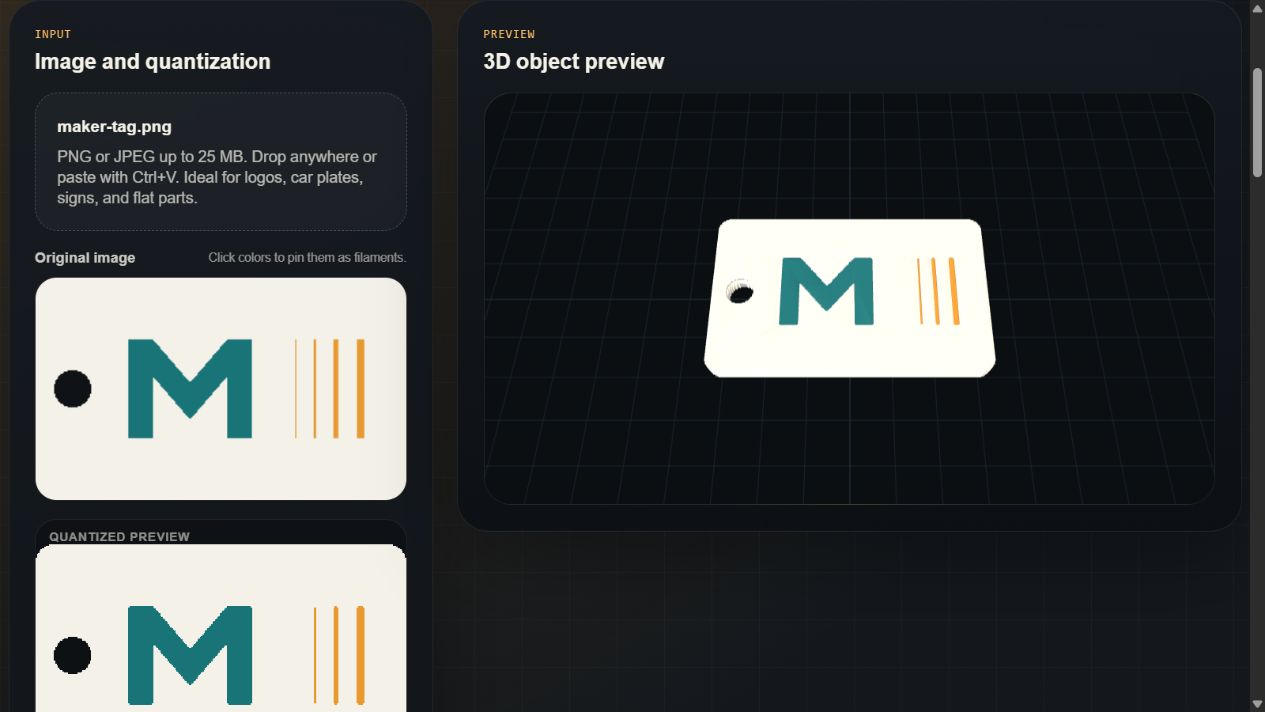
- Check that the preview contains the M, four separate lines and an open hole.
- Download the 3MF. Open the reference file above to compare with your own export.
- Open it in OrcaSlicer or Bambu Studio. Keep the colored parts together as one multipart object if prompted.
- Assign the three regions to actual filaments. Screen colors describe the regions; they do not guarantee a filament color match.
- Select your printer and filament profiles, then slice. The file contains geometry and color data; your printer settings still matter.
4. Compare geometry with the sliced paths
The four amber lines, from left to right, are 1, 2, 4 and 6 pixels wide: 0.2, 0.4, 0.8 and 1.2 mm at this scale. Seeing a line in the 3D preview does not mean a slicer will produce a path for it.
At a 0.20 mm layer height, the 0.4 mm color depth spans two nominal layers. First-layer height and layer alignment can change the actual paths. Use the layer slider, record your slicer version, nozzle, layer height and wall generator, and compare before spending filament. The thin-line troubleshooting guide explains what to inspect when a line disappears.
What we checked, and what still needs a print
The downloadable reference was generated with the MakerTools3D conversion API. We checked that the 3MF archive opens without CRC errors, the analysis contains three opaque palette colors, and the exported geometry bounds are 60 × 36 × 2 mm. Download the verification report or complete export configuration to inspect the details.
This example has not been physically print-tested. Ring strength, actual color appearance, line survival, print time and purge quantities depend on your printer and profiles. A successful conversion is the starting point for those checks.
Adapt the tag
- Replace the M with bold artwork while keeping enough material around the hole.
- Use a real alpha channel for holes. Saving as JPEG removes transparency.
- If letters disappear after slicing, widen strokes or increase physical size before increasing mesh resolution.
- For a raised design, switch to Color relief and set individual color heights. This changes the geometry from the flat reference.
- If the shape already exists as an STL, use Apply Image to Model.
Found a mismatch? Send a report with the settings, slicer version and a screenshot of the affected layer.