Guides / slicer workflows / print checks Guides for image-based 3D printing.
MakerTools3D is built around browser tools, but the result still depends on image preparation,
slicer settings, nozzle limits and print orientation. These guides explain the tradeoffs before
you export a file, so the 3MF, STL or SVG you download is closer to something that prints
cleanly on the first attempt.
Start with the print goal
A keychain, a car plate, a logo badge, a heightmap relief and a lithophane all start with an
image, but they should not use the same settings. The important questions are physical: how
wide will the object be, how many filaments are realistic, whether transparent pixels should
become holes, and whether thin strokes are wider than the slicer's printable line width.
The tools on this site keep those workflows separate. Use image to 3MF for colored flat parts,
apply image to model when a model already exists, image to heightmap for visible relief, image
to lithophane for backlit photos, and PNG to SVG when a slicer modifier is the better path.
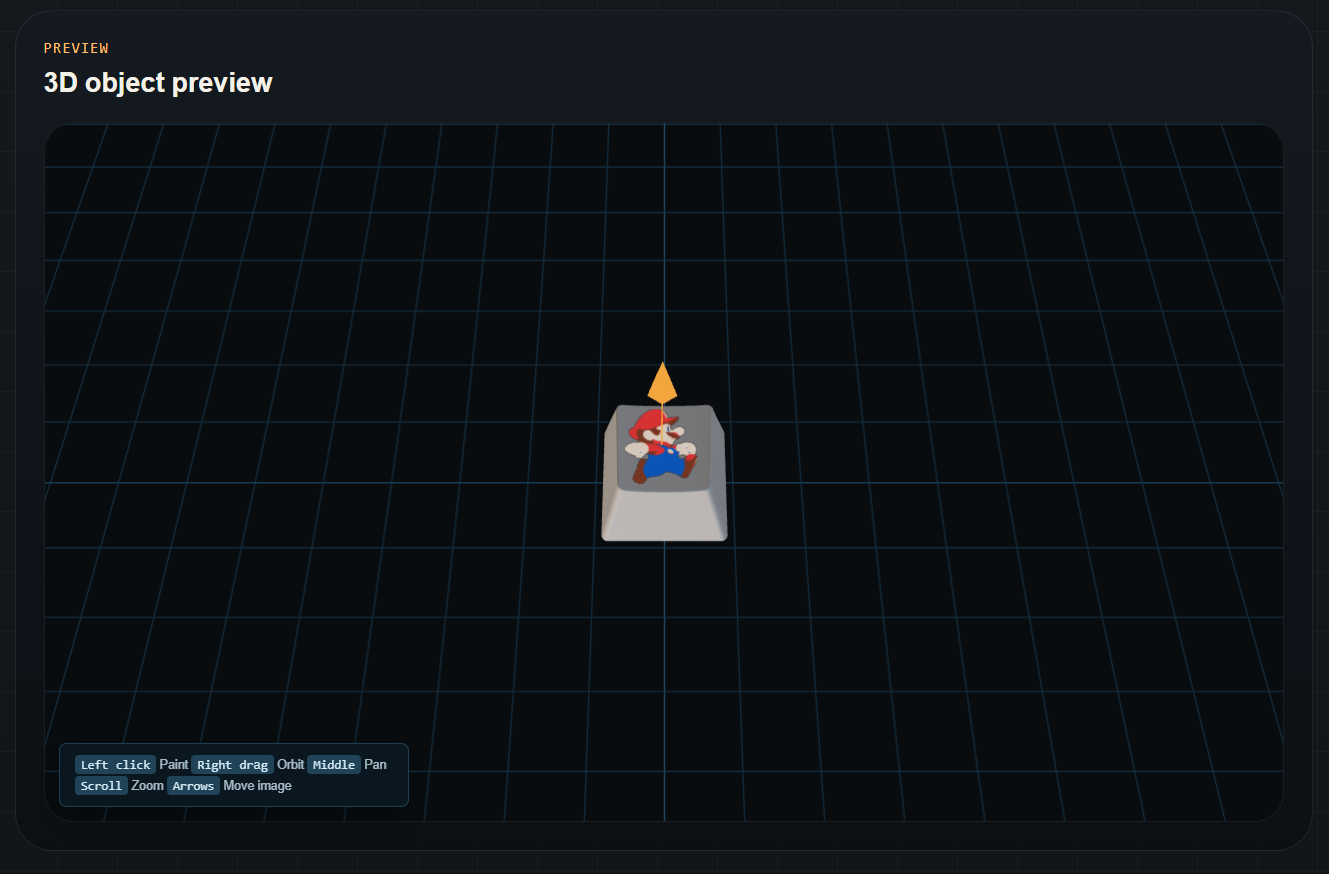
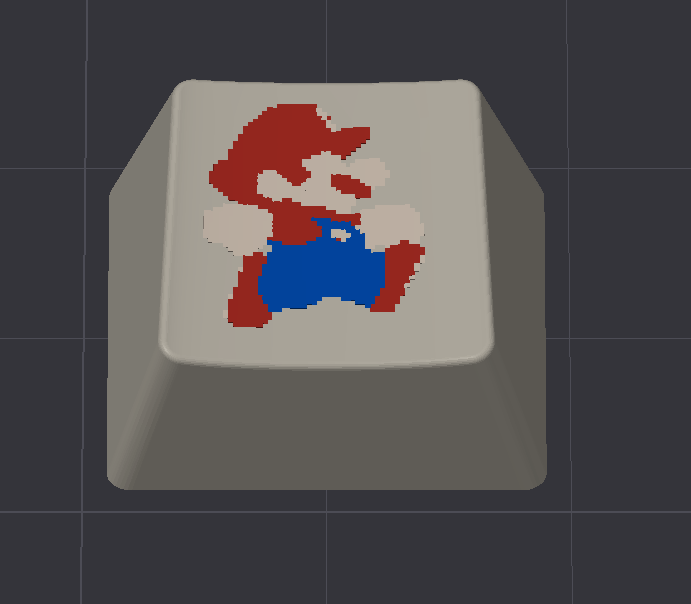
Tool Apply an image to an STL or 3MF model
Project a quantized PNG or JPEG onto an existing model and export a multicolor 3MF for AMS-style printing.
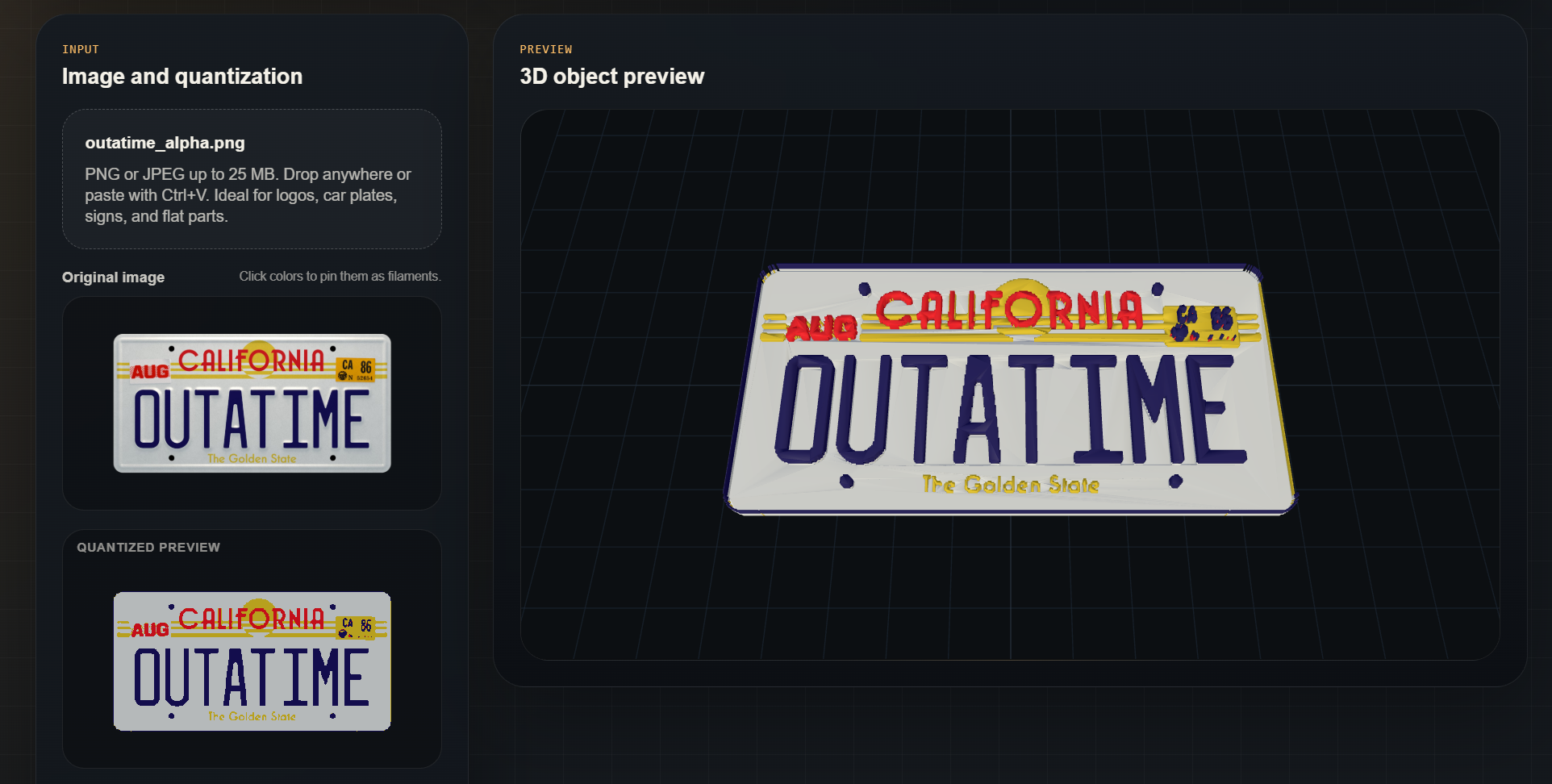
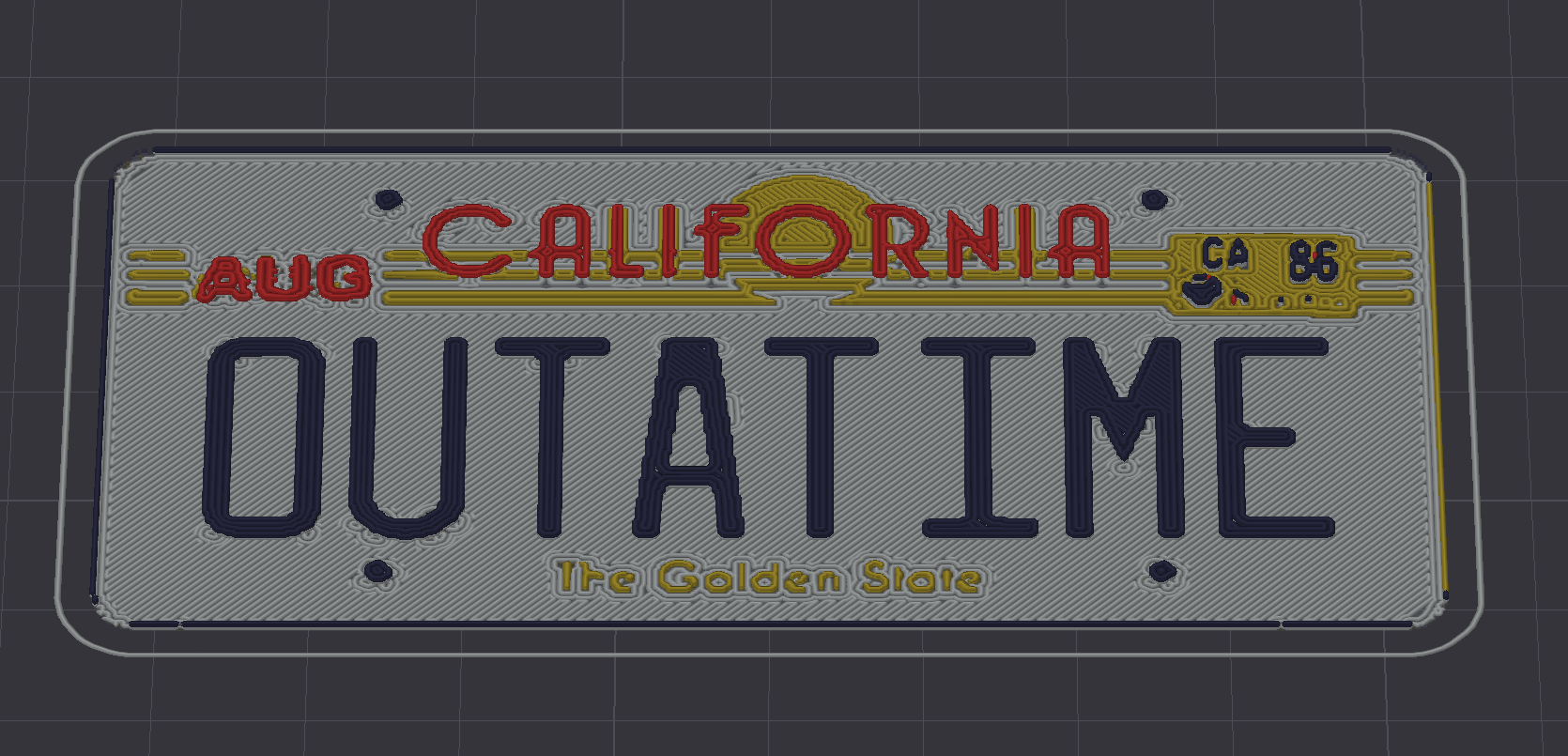
Tool Image to 3MF
Convert a flat image into printable multicolor 3MF geometry for OrcaSlicer, Bambu Studio and other slicers.
Tool GLB to FullSpectrum 3MF
Convert textured GLB models into Snapmaker Orca FullSpectrum 3MF files with configurable solids, derived mixes and texture dithering.
Guide Make a three-color tag: PNG to 3MF
Download the original PNG, reference 3MF and exact settings for a 60 mm tag with a transparent hole and thin-line checks.
Guide Convert a logo to multicolor 3MF
Prepare logo files, choose color counts and avoid slicer problems when turning artwork into printable objects.
Guide Transparent PNG to printable cutout
Use alpha transparency as geometry cutouts instead of relying on deleting quantized colors after conversion.
Guide Flat multicolor 3D prints
Use unified cores, visible skins and slicer preview checks to reduce waste while keeping visible color surfaces.
Guide AMS multicolor 3MF workflow
Choose a realistic palette size for Bambu AMS, AMS Lite, IFS, CFS, ACE, CANVAS and multi-tool workflows.
Guide Why thin lines disappear in slicers
Diagnose missing letters, borders and diagonal strokes in sliced preview before wasting a multicolor print.
Guide Heightmap vs lithophane
Understand why both tools convert brightness to thickness but need different defaults and print checks.
Guide Image resolution for 3D printing
Use mm per pixel, nozzle width and final object size to pick a mesh resolution that is useful but not wasteful.
Guide Image to STL vs image to 3MF
Know when STL is enough and when 3MF is the right container for colors, materials and slicer context.
Tool PNG to SVG for slicer modifiers
Vectorize raster artwork into SVG paths for clean one-color modifiers, decals and printed surface artwork.
What these guides are meant to solve
Files that look correct before slicing
Slicer prepare view can show colors and shapes that later disappear in sliced preview.
The guides explain why thin lines, elephant-foot compensation, color depth and internal
material regions can change the real toolpath.
Models that are technically valid but impractical
Very high image resolution creates huge meshes and slow exports. The image resolution guide
explains how to choose mm per pixel based on print size instead of blindly preserving every
source pixel.
Too many filament changes
Multicolor printing is useful, but every hidden color region can add purge, time and
complexity. The AMS workflow and flat multicolor guides focus on visible color, unified
cores and realistic palette sizes.